What NotebookLM actually exports
An audio overview, a video overview, reports, and a slide deck in PDF form — there is no native .pptx export as of writing. So the first move in NotebookLM to editable PPT is accepting that the PDF is where NotebookLM stops.
Why a PDF page is still not a slide
A PDF fixes a page into its final layout. The text can be selected, but its paragraphs, colour blocks and cards are not PowerPoint text boxes and shapes, and changing one number breaks the page apart. A rasterised or scanned page is worse: there is no text layer at all, so everything has to be recognised from pixels.
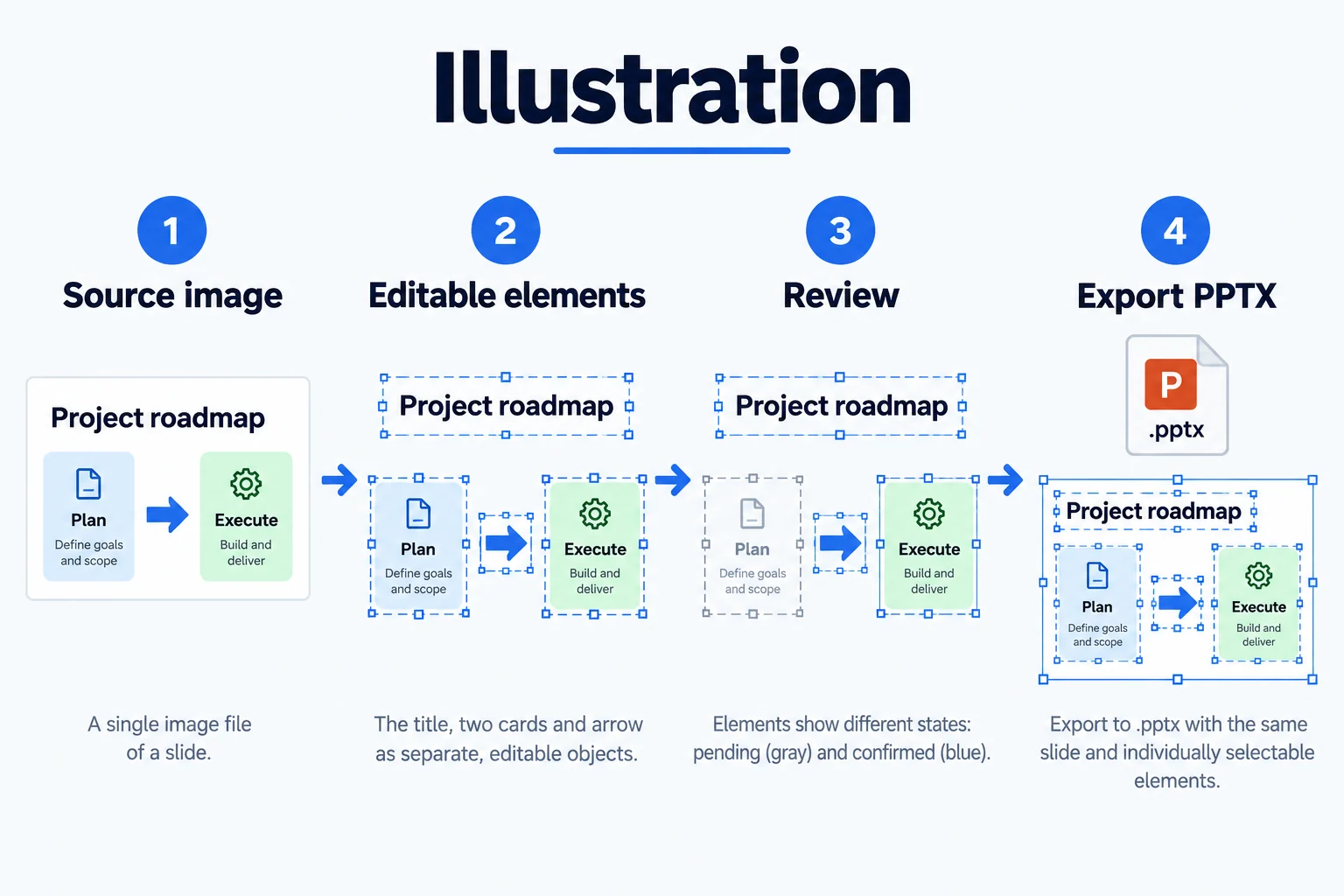
NotebookLM to editable PPT in four steps
Export the PDF, turn each page into a PNG (or capture it at 2x), upload one page at a time, check the copy in the editor, then export a .pptx. One page per job, so with a long deck start from the pages you actually need to change.
Why NotebookLM decks convert well
NotebookLM slides carry one idea per page: a large heading, few colours, simple geometry and almost no ornament. That suits NotebookLM to editable PPT well, because headline and body boundaries are clear and the shape count stays low. Watch the small citation footers and footnotes, where the type is tiny enough that recognition gets conservative.
Choosing a resolution when the PDF becomes an image
Exporting at 150 DPI is usually enough: body text lands around fourteen pixels tall. Pages with dense footnotes are better at 200 DPI. Beyond that the gain is small while the file grows and uploads slower. Check the pixel width after exporting — for a 16:9 page, around 1920 is the sweet spot for a NotebookLM to editable PPT pass.
What to do with citation footers
The small citation footers at the bottom are the part most likely to come back wrong: tiny type, low contrast, often bracketed numbers. After conversion they may appear as one very long text box or a handful of fragments. If the citations do not need to survive, deleting them is faster than fixing them; if they do, retyping beats repairing the formatting.
How many pages to convert in one go
One page per job looks slower and is actually cheaper: a single failure is cheap to retry, and systemic problems surface early — if the same element goes missing on the first three pages, you can change the input before the fourth. Running the whole deck through a NotebookLM to editable PPT pass at once buries those signals.
Handling two-column pages
A two-column page is the easiest to misread: the columns can merge into one line, or the gutter can register as an image. Check first whether the body came back as a single paragraph; if it did, splitting it into two text boxes in the editor is faster than re-converting. When the source PDF allows it, flattening to one column before exporting images avoids the problem entirely.
Two things to recheck on the exported deck
First, whether every citation you kept still points at the right page. Second, whether the pages you skipped were the ones you meant to skip. A NotebookLM to editable PPT pass reproduces the layout faithfully, but it cannot know which pages your audience needs, so a NotebookLM to editable PPT result is only as good as the page selection behind it.
Questions
Can NotebookLM export a PPTX?
Not right now. The slide deck comes out as a PDF, while the audio and video overviews are separate formats. Getting a .pptx means going PDF to image to conversion.
Is the text still editable after conversion?
It becomes a text box you can retype and resize. If the page you supplied was rasterised, the text is recognised rather than extracted, so proofread before exporting.
Can I convert a whole NotebookLM PDF at once?
One page per job. With many pages, convert the ones you need to change first and keep the rest for later; each page draws credits.
Will PPTX export arrive later?
Nothing has been announced. Even if it arrives, the export may not be element-editable; this page will be updated when it does.
What do charts in the PDF become?
Editable drawings: bars, axes and labels as separate objects you can recolour and relabel, though not yet a native chart with a data series.