Release: 2026-10-12
The first version connects the main workflow of image to PPT end to end: you upload a slide image, a multimodal model breaks the picture down into a data-only element description (DrawScript), you confirm the elements one by one, and the tool exports a PPTX made of native shapes that can be edited directly in PowerPoint.
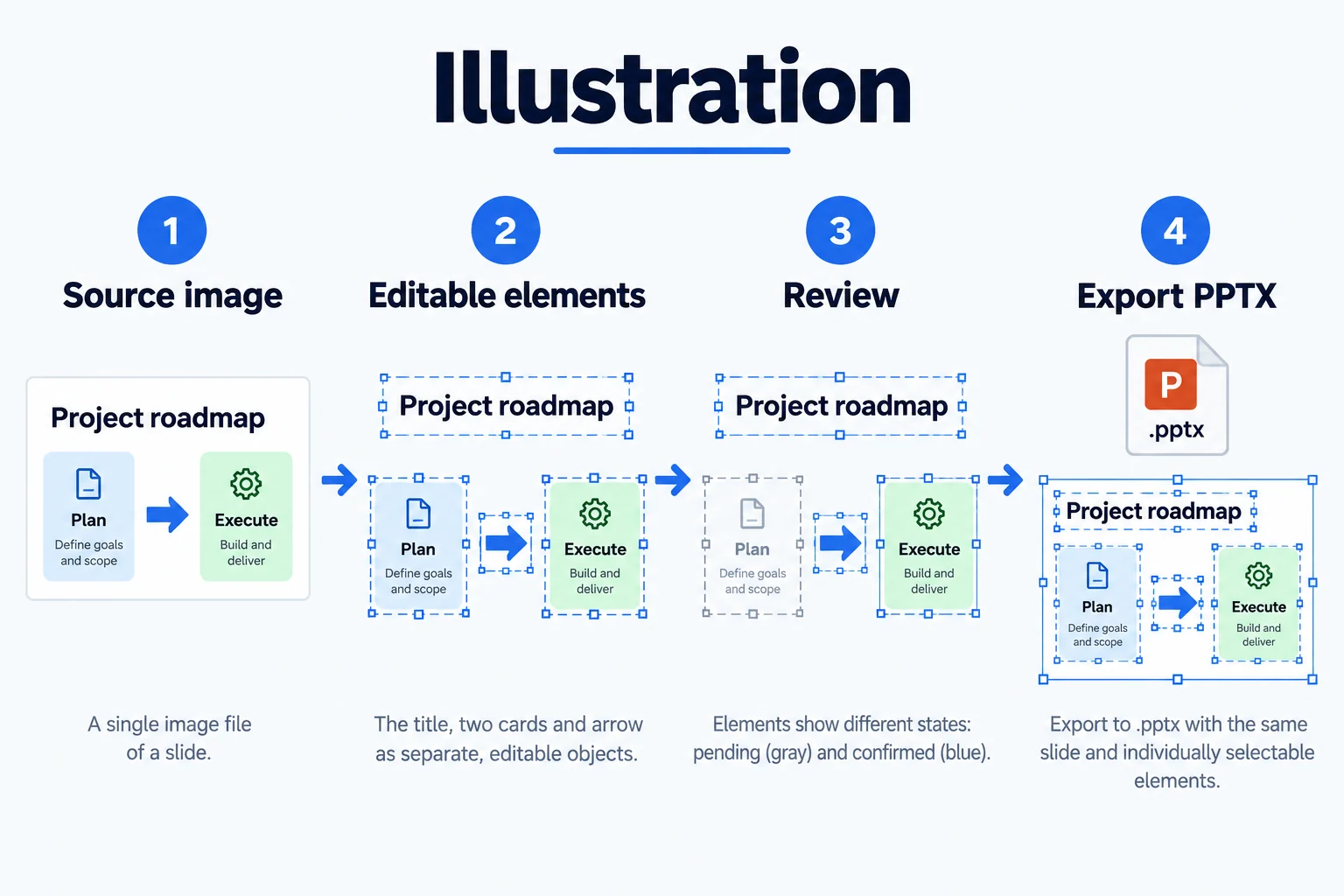
How to convert an image to PPT in five steps
The pipeline above is the whole answer to how to convert an image to PPT, but it is easier to follow as five steps: upload the slide screenshot, run decomposition, confirm every element, apply one of the three layouts, then export the native PPTX. Nothing is pasted as a picture along the way, which is why the result stays editable once how to convert an image to PPT is done. Every step writes through the same validation, so the geometry you confirm is the geometry that lands in the file.
Starting point
Often the only thing a user has is a screenshot of a slide. What they need is not "an image placed in a PPT", but a title, color blocks and connectors that can each be selected, retyped and recolored. Our approach is to let a multimodal model look at the image and state what is in it, where, and what it looks like, and then have a local program draw that description as native shapes.
The three basic decisions of the first version all follow from this:
- The model only describes; it does not generate files. It outputs a JSON description, and the PPTX file is generated entirely by the local engine.
- Model output can only be data. Images, URLs, base64, XML and code are all rejected. This way the export always consists of editable shapes rather than pasted pictures, and the server never runs code or contacts an external address because of something the model wrote.
- A person reviews the result. Model output may contain deviations, so every element must be confirmed by the user before export.
DrawScript: a data-only intermediate format
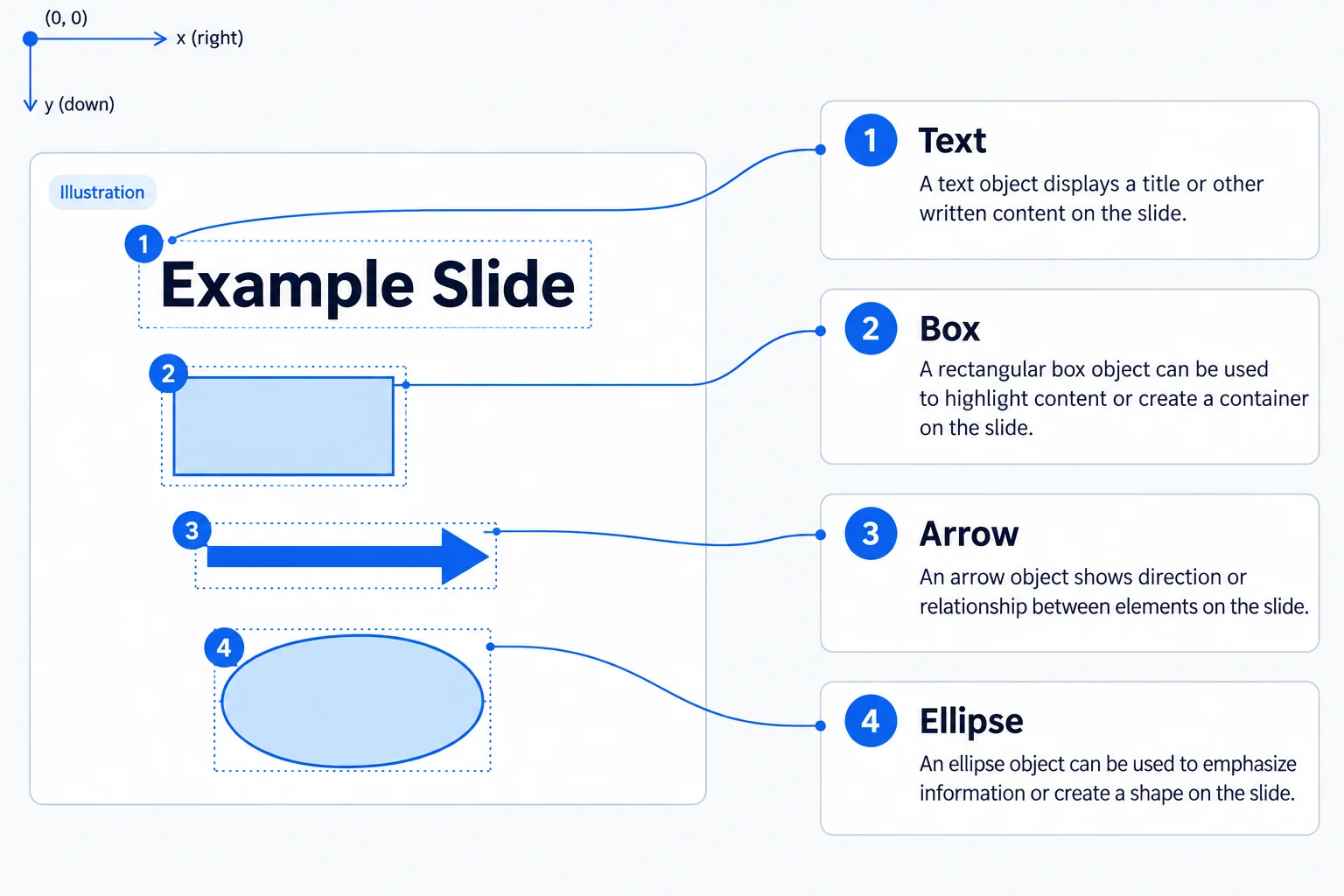
DrawScript records the canvas width and height, an optional background color and a list of elements. All coordinates use original image pixels. Elements are stacked in order: an element drawn later covers the ones drawn before it. This version supports six element types:
| Element | What can be set |
|---|---|
| Text | Text content, font size, bold, italic, color, alignment, font |
| Rectangle | Fill, border color and width, corner radius, dashes |
| Ellipse | Fill, border |
| Line | Color, width, dashes, arrows |
| Polyline | At least two points; the arrow goes on the last segment |
| Polygon | At least three points; used to approximate complex shapes |
Each element type has an explicit list of allowed properties, and any property outside the list is reported as an error. This version has no icons, tables or images yet. When it meets an icon-like element, it reports an error rather than quietly substituting an ellipse.
DrawScript is a public format. Besides being generated by the model, a JSON file can be loaded with "Import DrawScript" to replace the current script. Imported scripts go through the same validation as model output, and all elements are unconfirmed after import. Scripts generated offline by other tools can therefore join the same review and export workflow.
The data boundary is enforced by the program
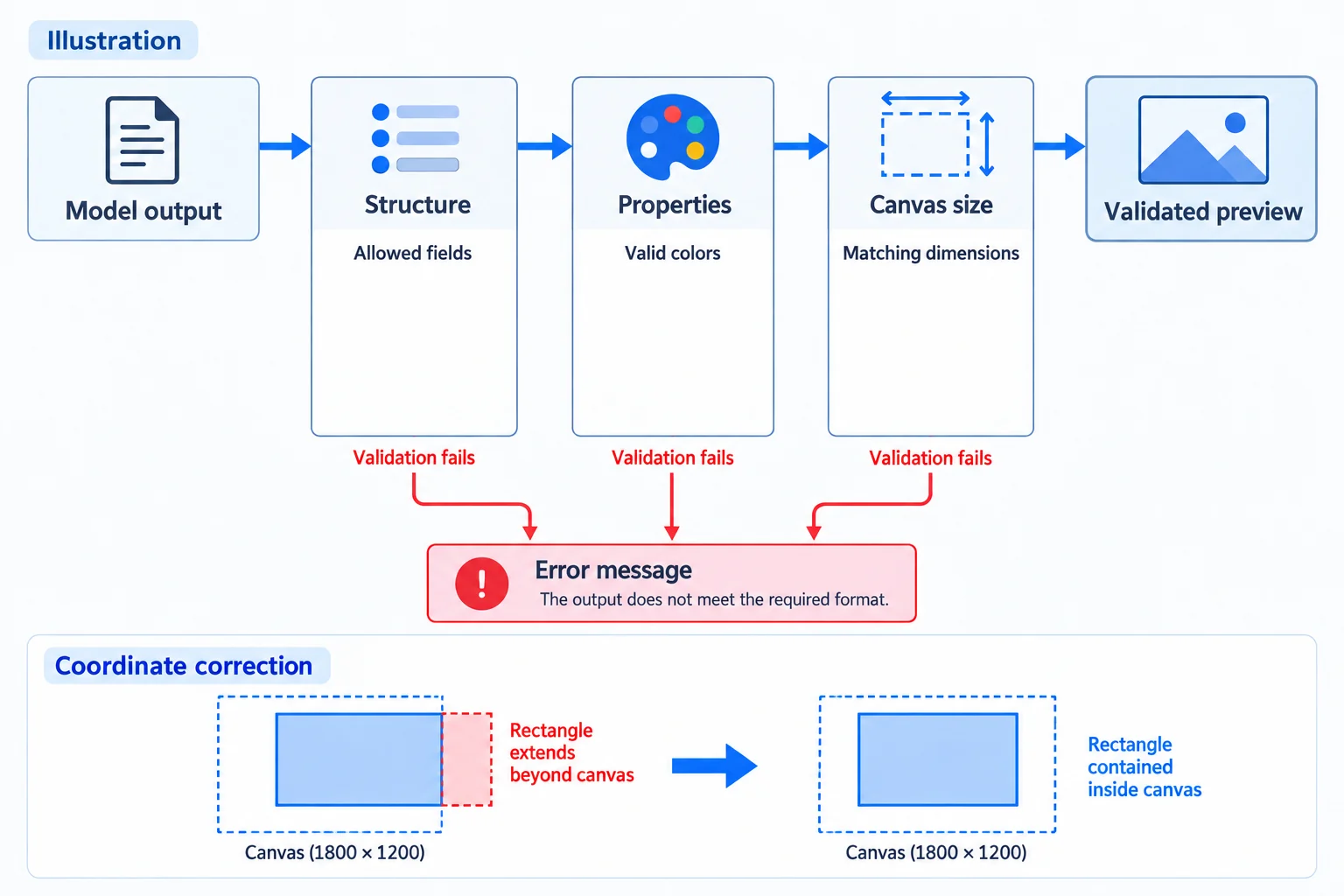
"Data only" cannot rest on a prompt agreement alone. Before model output is written to a job, it passes three layers of validation:
- Structure: only the agreed fields are recognized; a script that embeds or references the original bitmap is rejected; element types must be on an allowlist, coordinates must be numbers, and their count must match the element type.
- Semantics: each element's properties are checked against its list; color formats, font sizes, line widths and dash styles all have allowed ranges. A slide has at most 2048 elements, a single polygon at most 4096 points, and a single text block at most 4000 characters.
- Consistency: element IDs must be unique and are assigned automatically when missing; the script's width and height must match the original image.
Coordinates outside the canvas are not treated as errors. They are pulled back inside the canvas and listed on the page under "Compiler notes".
After these layers, the only free-form fields left in a script are text content, element names and font names. Even if the model writes a URL into a text field, it appears only as text: it is never visited and never becomes an image. Decomposition, import, manual edits, chat edits and layout all write through the same validation; there is no path around it. The validated geometry is exactly the geometry used for export, so the positions you see during review match the exported file.
Decomposition: the middle of how to convert an image to PPT
After you click "Decompose", the model output appears piece by piece in the "Model output" window, and when it finishes the page refreshes with the validated result. The service handles at most 2 model calls at a time, and a single decomposition waits at most 5 minutes. If decomposition fails, the job is marked as failed with the reason shown, and you can decompose again.
Review and confirmation: the checkpoint in how to convert an image to PPT
- Each element is confirmed individually, and layout and export are available only after all elements are confirmed. The server enforces this rule; it is not only a disabled button.
- Changing an element's parameters removes the confirmation of that element only. Deleting an element clears all confirmations, because the overall composition has changed. At least one element must remain on the slide.
- Three layouts are available: "Grid layout", "Center layout" and "Align left". When the elements do not fit the grid, the tool says so instead of quietly scaling them.
- Chat edit: select one element and describe the change in one sentence. The model returns a new description for that element only; the result goes through the same validation and returns to unconfirmed. This path later grows into the full imageToEditablePPT-Agent in Chapter 05.
Model and key
You provide the model yourself (BYOK). In "Multimodal model settings", choose a provider and enter the API key and model name; you can also connect a custom compatible endpoint. Configuration through environment variables is also possible, and the settings on the page take precedence. Only providers that can read images appear in the list. Without a configured model, decomposition asks you to finish the configuration first.
What you can rely on:
- The key is stored only on the local server. The browser only knows whether a key is configured; it never receives the key itself.
- If an error message contains the key, the key is replaced before the message is returned.
- The service accepts only local access and rejects cross-site requests from other websites, so other web pages cannot use your browser to call this local service.
Concurrency protection
Each job carries a revision number, and every change must be based on the latest revision. While one operation is in progress, other changes are rejected. If you double-click a button, open two tabs, or change something else before the model returns, the later request is blocked with a prompt to refresh and retry, and the job state is not corrupted.
In this version, jobs are kept in the memory of the service process. At most 12 are kept at a time, and jobs idle for more than 1 hour are cleaned up.
Export: native shapes, the last step of how to convert an image to PPT
- The slide size is converted from original image pixels at 96 DPI, and font sizes and line widths use the same ratio.
- The background color becomes a real slide background.
- Text is exported as text boxes, without automatic wrapping or automatic font scaling.
- Rectangles (including rounded rectangles), ellipses, lines (including arrows), polylines and polygons are all exported as native shapes; polygons use custom paths.
- Element names are written to the PowerPoint Selection Pane, so they are easy to find and edit further in PowerPoint.
- Export does not go online, does not decode images, and does not accept external XML. The original image is only a reference input for the model and does not appear in the exported file.
Improvements
To keep small deviations in model output from invalidating the whole result, we added a few limited tolerances on top of strict validation:
- Common alternative spellings of the same property (for example, arrows and polygon fill color) are recognized.
- If model output is wrapped in a Markdown code block, or a single-element edit result is wrapped in an extra layer, the wrapper is removed automatically; the fields themselves are still strictly validated.
- Coordinates slightly outside the canvas are pulled back inside with a note, instead of rejecting the whole script.
These validation rules, and the complete workflow from upload, decomposition, confirmation and layout to export, are covered by automated tests.
Limits of this version: where how to convert an image to PPT stops
- Quality depends on manual review: there is no automatic check for missing elements or position deviations, and during decomposition the canvas appears only after the model output is complete. Chapter 02 adds the integrity check, live preview and visual recheck.
- Validation applies to the whole script: if a single element is invalid, the whole decomposition fails and has to be run again. From Chapter 02, empty text placeholder elements are ignored; from Chapter 03, failed decompositions are retried automatically.
- Model configuration and jobs are kept only in memory, so after a service restart you need to enter the configuration again and upload the image again. From Chapter 02, both are saved locally and restored after a restart.
- Expressiveness is limited: there are no icons, tables or images, and complex illustrations can only be approximated with polygons. Chapter 03 adds icons and tables, and Chapter 07 adds cutouts from the original image.
The next chapter adds an automatic quality loop to this workflow: an integrity self-check after decomposition, a live preview that draws while the output streams, and a visual recheck that compares a screenshot with the original image. That matters most for how to convert an image to PPT when the source page is dense and no one wants to compare it element by element by hand.