Release: 2026-10-14
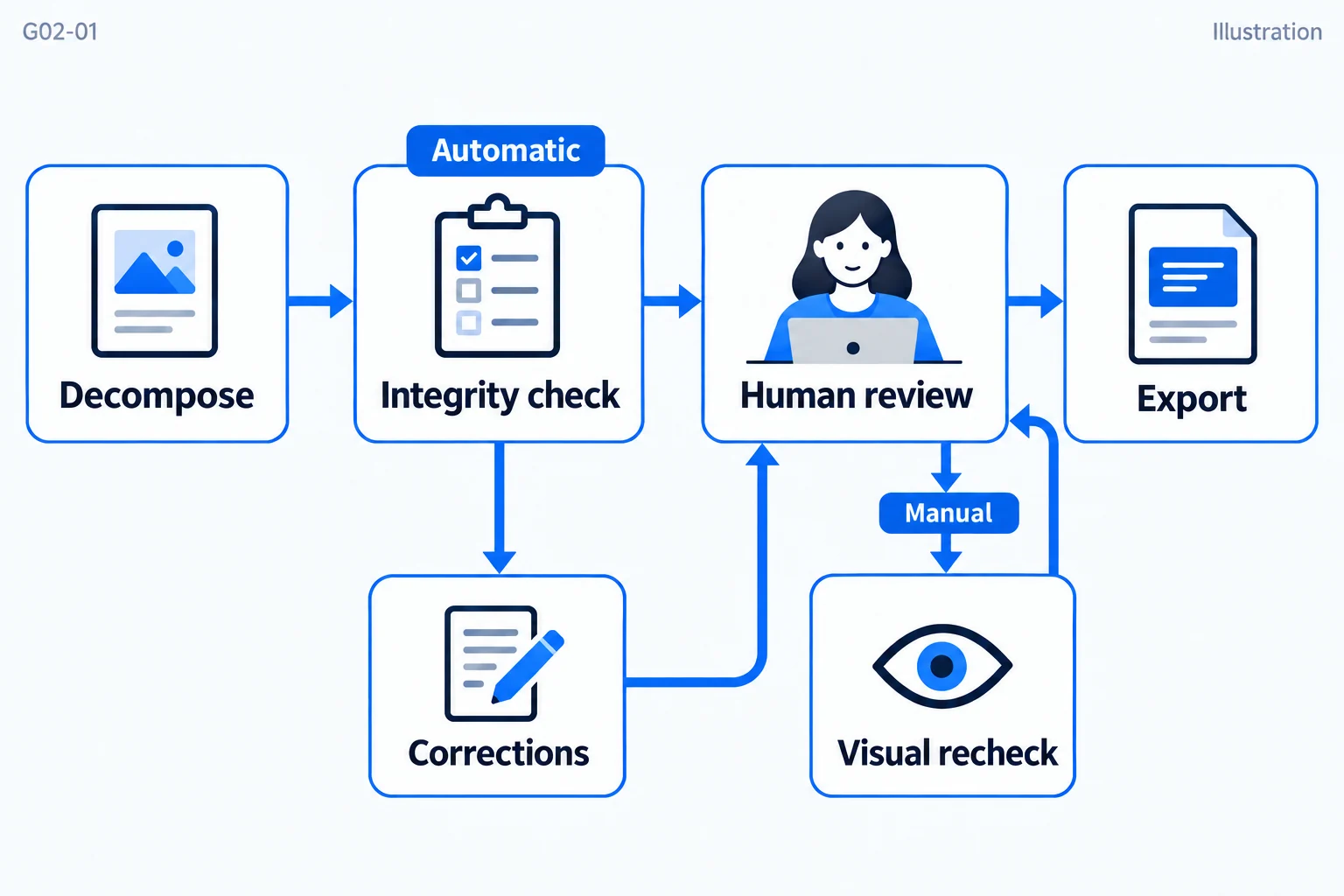
This version adds several automatic checks to the image to slide result: after the model finishes, an integrity check runs automatically; during decomposition the canvas draws as the output arrives; and a screenshot of the current preview can be sent to the model together with the original image for a comparison recheck. The model configuration and the job in progress are also saved locally and can be restored after a service restart.
What image to PPT accuracy depends on
Image to PPT accuracy is not a single score. It depends on what the model notices during decomposition, on the checks that run afterwards, and on whether a person confirms the elements those checks add. This chapter covers the three mechanisms that protect image to PPT accuracy — a shared report format, a live preview, and a visual recheck — plus the parts that still need a human.
Background
The first version in the previous chapter did three things: the model decomposed the image into DrawScript, the user confirmed each element, and the tool exported a native, editable PPTX. The workflow worked end to end, but quality depended entirely on manual review: a missing divider or a missing icon could only be found by the user comparing against the original image element by element; the canvas stayed empty during decomposition; and after changing an element it was hard to see what had changed on the canvas.
Integrity check and visual recheck: one report format
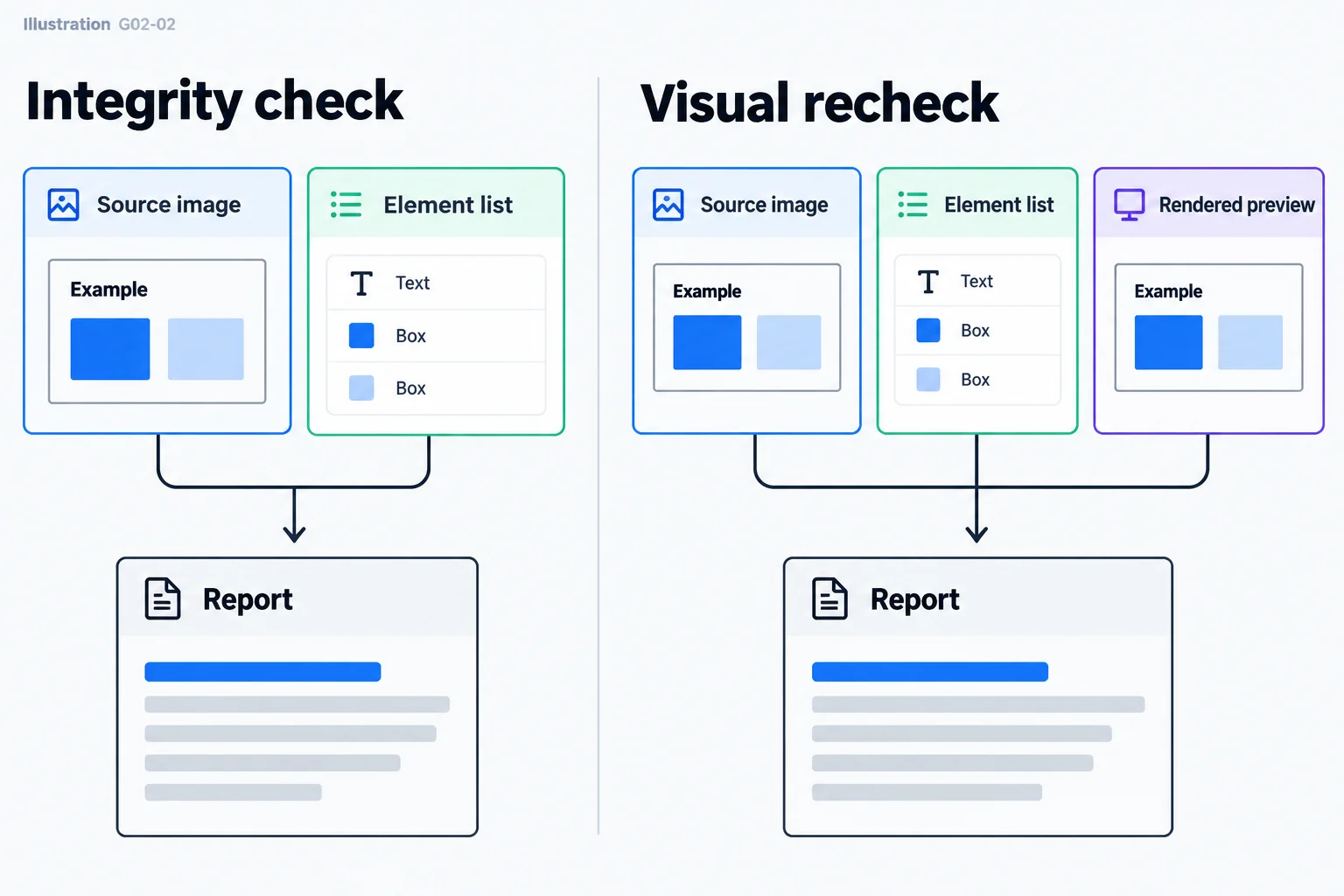
Both checks use the same checklist and the same report format, and cover nine dimensions:
| Dimension | What it looks at |
|---|---|
| Missing | Text, icons, dividers, shapes, background blocks, arrows and similar items that are in the original image but not in the reconstruction |
| Text | Whether text matches character for character, including missing or wrong characters, truncation, letter case and line breaks |
| Text style | Font size, bold and italic, color, alignment |
| Geometry | Position, size and proportions |
| Color | Fill, line and background colors |
| Shape approximation | Whether shapes approximated with polygons or lines are recognizable |
| Stacking | Whether the drawing order causes wrong overlaps |
| Extra | Elements that are in the reconstruction but not in the original image |
| Coverage | How completely the slide is restored overall, in three tiers: high, medium, low |
The difference between the two is what the model sees. The integrity check gives the model the original image and the current element list. The visual recheck also attaches a screenshot of the current preview, to find problems that only show up once the slide is drawn, such as the colors actually rendered, overlaps, font fallback and real position offsets.
If an individual entry in the model's report is malformed, only that entry is discarded; the rest of the report is kept. Each report lists at most 40 issues and adds at most 24 elements.
Added elements must be confirmed by a person
Elements that the model considers clearly missing, and for which it can give an exact position, are added to the script automatically. Every added element goes through the same validation as decomposition; elements that fail are skipped, with the reason given in the report. Added elements are marked "New · unconfirmed" and must still be confirmed one by one before export, so content added by the model never reaches the PPTX without human review.
When a report goes out of date
After the script content changes, the report shows "The script has changed, so this report may be out of date". Confirming elements alone does not make the report out of date: the next step after receiving a report is to confirm elements one by one, and if confirming also made the report stale, the report would lose its purpose.
Automatic check after decomposition
An integrity check runs automatically once decomposition finishes. If the check itself fails, the successful decomposition result is not affected, and the page suggests clicking "Check again" to retry. The visual recheck is started manually by the user.
Live preview
Decomposition streams. From this version, every time a piece of model output arrives, the page draws the elements in it that are already complete onto the canvas, so you can watch the slide being drawn bit by bit. When decomposition ends, the canvas switches to the official result validated by the server. The preview is for watching only; the validated result is what counts.
Change highlight
Manual parameter changes, chat edits and elements added by a check make the element's outline flash once on the canvas (about 1.4 seconds), and the element list scrolls to the first changed item at the same time. The highlight is only a UI cue; it is not written into the script and does not appear in the exported file.
Visual recheck: the second pass for image to PPT accuracy
The screenshot for the recheck is generated in the browser: the current canvas is rendered at the pixel size of the original image, selection boxes are removed, a white background is added, and the result is output as a PNG, so the coordinates of the screenshot and the original image correspond one to one. The recheck panel shows progress in steps ("Taking screenshot", "Uploading for comparison", "Model rechecking", "Recheck complete") and displays the screenshot used for this comparison, so you can see what the model received. Issues in the report that point to a specific element can be clicked to jump to that element.
Multiple selection
Element selection changes from single to multiple: Cmd/Ctrl-click toggles an element, Shift-click selects a range in list order, and "Confirm selected" and "Delete selected" are added. Chat edits still apply to one element only; with several elements selected, the tool asks you to keep only one selected.
Improvements
- To keep one empty placeholder element from breaking the whole decomposition, decomposition and script import ignore placeholder elements with empty text and show "Ignored N empty text placeholders". Nothing else is changed; single-element edits, chat edits and elements added by checks are still strictly validated.
- Models sometimes add explanations, examples, comments or trailing commas before or after the JSON. To handle this, we now locate the actual script in the output before parsing it. If parsing still fails, the message distinguishes two cases: the output was cut off at the end (usually because it hit the output length limit), or the format does not meet the requirements (the suggestion is to check "Model output", switch to a stronger multimodal model, or import a script manually).
- The model configuration is saved on the local server and restored automatically after a service restart, so you do not have to enter it again. When you change only the model name or endpoint URL, you can leave the API key empty to keep the saved key. The key is never returned to the browser. Clearing the configuration also deletes the saved content. If you do not want the key written to disk, set the environment variable IMG2PPTX_PERSIST_CONFIG=0 before starting the service to turn saving off.
- The job in progress (original image, script, confirmation progress and check reports) is also saved locally. After a service restart the page restores the last job automatically, and half-finished confirmation progress is not lost. The job limit (12) and the rule that jobs idle for 1 hour are cleaned up stay the same.
- The server terminal logs the key steps of each decomposition and check, such as how much content the model returned, how many elements were loaded, failure reasons and check results, to help with troubleshooting. The logs do not contain keys.
Report parsing, element addition, staleness detection, placeholder cleanup and restart recovery are covered by automated tests.
Limits of this version: where image to PPT accuracy still needs you
- Checks can only add, not change: geometry, color and text style issues are only listed, and you need to fix them yourself or with a chat edit. Chapter 03 adds auto-fix tiered by severity.
- Added elements are limited to the six basic shapes. Logos, photos and complex icons can only be approximated with polygons or stay missing for now, and the checklist has no dimension for effects such as shadows yet. Chapter 03 adds the icon library, web images and effects such as shadows, and Chapter 07 adds cutouts from the original image.
Icons, web images, effects, and auto-fix tiered by severity are covered in the next chapter.