An image to PPT conversion is not finished when the elements reach the canvas: after decomposition, the integrity check has the same multimodal model review the newly decomposed Element list against the original image. It answers three questions: is anything missing, is anything drawn wrong, and is anything extra? The issues it finds go into a structured report. Elements that are clearly missing and for which the model can give exact coordinates are added to the slide directly as "New · unconfirmed". High-severity issues that point to an existing element are handed to single-element editing for one automatic fix. Every change returns to the unconfirmed state, and each element still has to be confirmed by hand before export, so content added by the model never bypasses human review.
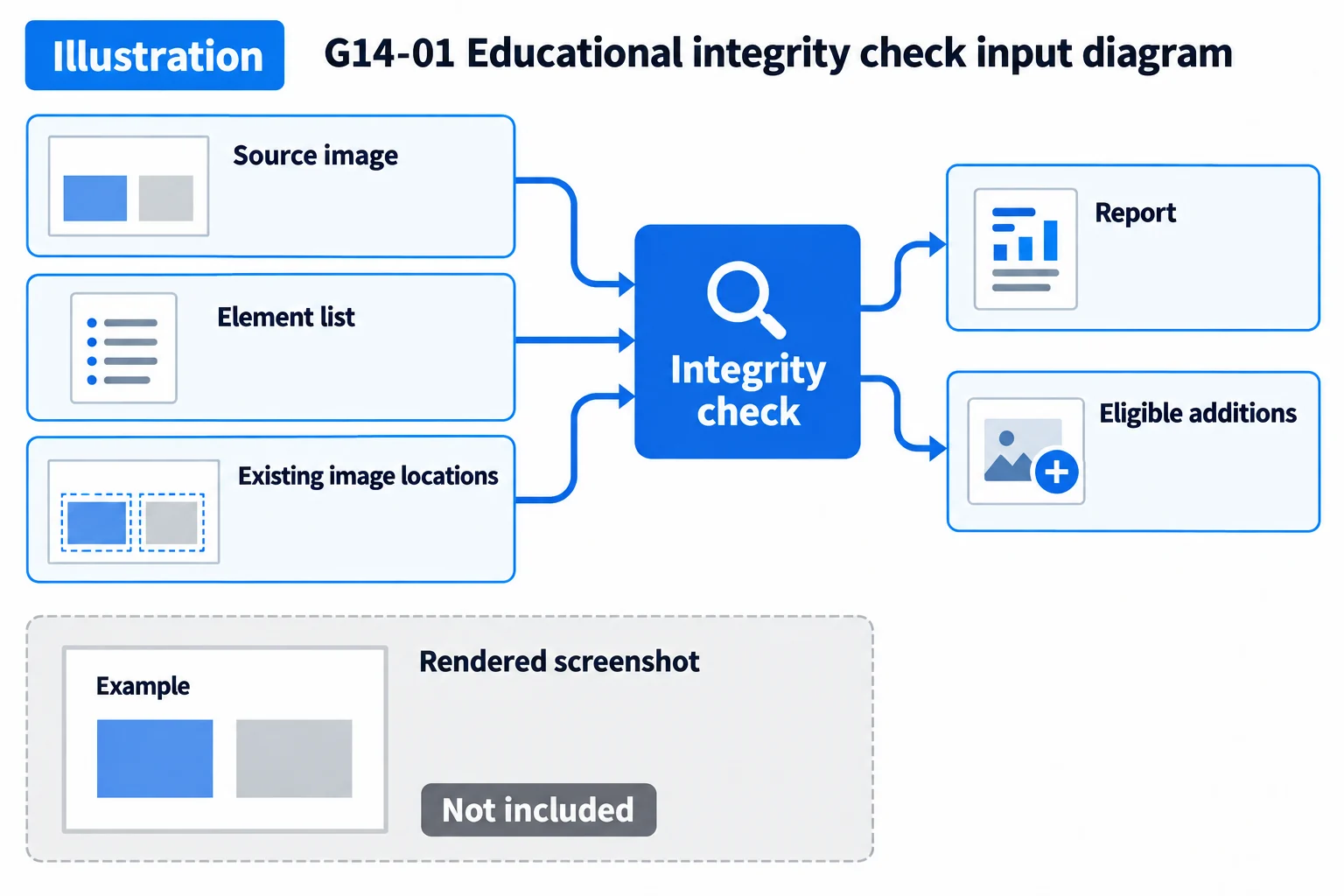
For image to PPT, the integrity check looks only at the original image and the numeric parameters of the elements, not at the rendered result. Whether the drawn slide matches the original image is the job of the visual recheck.
When it runs
- Automatically: right after decomposition. While the check runs, the Element list shows the final decomposition result.
- Manually: "Start check" on the "Integrity check" tab (when no check has run yet), or "Check again" at the top right of the report.
Messages in the interface:
| When | Message |
|---|---|
| Check in progress | Analysis complete. Running the integrity check… |
| Automatic check added elements | Analysis complete. The integrity check added N missing elements; confirm each one. |
| Automatic check added nothing | Analysis complete. Check and confirm each element. |
| Automatic check did not finish | Analysis complete. The integrity check did not finish; click "Check again" to retry. |
| Manual check finished | Integrity check complete. Added N missing elements; review and confirm each one. / Integrity check complete. Nothing is missing. |
When the automatic check does not finish, the decomposition result is kept as usual; only the report is missing for now, and you can retry by hand.
The "Integrity check" tab appears only under imageToEditablePPT-Agent; the number on the tab is the number of issues in the report.
What is sent to the model
The model receives, in order:
- The task: review the completeness and fidelity of the slide against the original image, with the canvas measured in pixels of the original image;
- The list of images already placed on the slide (see below);
- The slide description rules, and the requirements for photos and illustrations (see below);
- A fixed checklist;
- The type, name and parameters of every current element;
- The output format of the report.
Only one image is attached: the original image the user uploaded. The check uses the same model as decomposition; when no model is configured, the message "Image analysis is not configured, so the integrity check cannot run." appears.
Not sent to the model: rendered screenshots, the confirmation states of elements, and the pixels of images (images appear only as a text list).
Checklist
The checklist has 10 categories that map one to one to the categories in the report, and it is shared by the integrity check and the visual recheck:
| Category | What it checks |
|---|---|
| Missing element | In the original image but not on the slide: text blocks, icons, dividers, borders, shapes, background blocks, arrows, table lines |
| Text content | Whether the text matches the original image character for character: missing or wrong characters, truncation, letter case, line breaks |
| Text style | Font size, bold/italic, color, alignment |
| Position and size | Whether position, size and proportions match the original image |
| Color fill | Whether fill, stroke and background colors are accurate |
| Shape approximation | Whether graphics approximated with polygons or lines are recognizable; a table drawn as scattered lines and text should be one table; an icon assembled from polygons, lines and ellipses should be one icon, naming which icon to use |
| Shadow / effect | The original image has a shadow, blur or outer glow that the element lacks, or the effect is drawn wrong; effects that are not in the original image should not be added |
| Stacking / overlap | Whether the drawing order causes wrong overlaps |
| Extra / hallucinated | Elements on the slide that are not in the original image |
| Completeness | An overall rating (high/medium/low) plus a one-sentence summary |
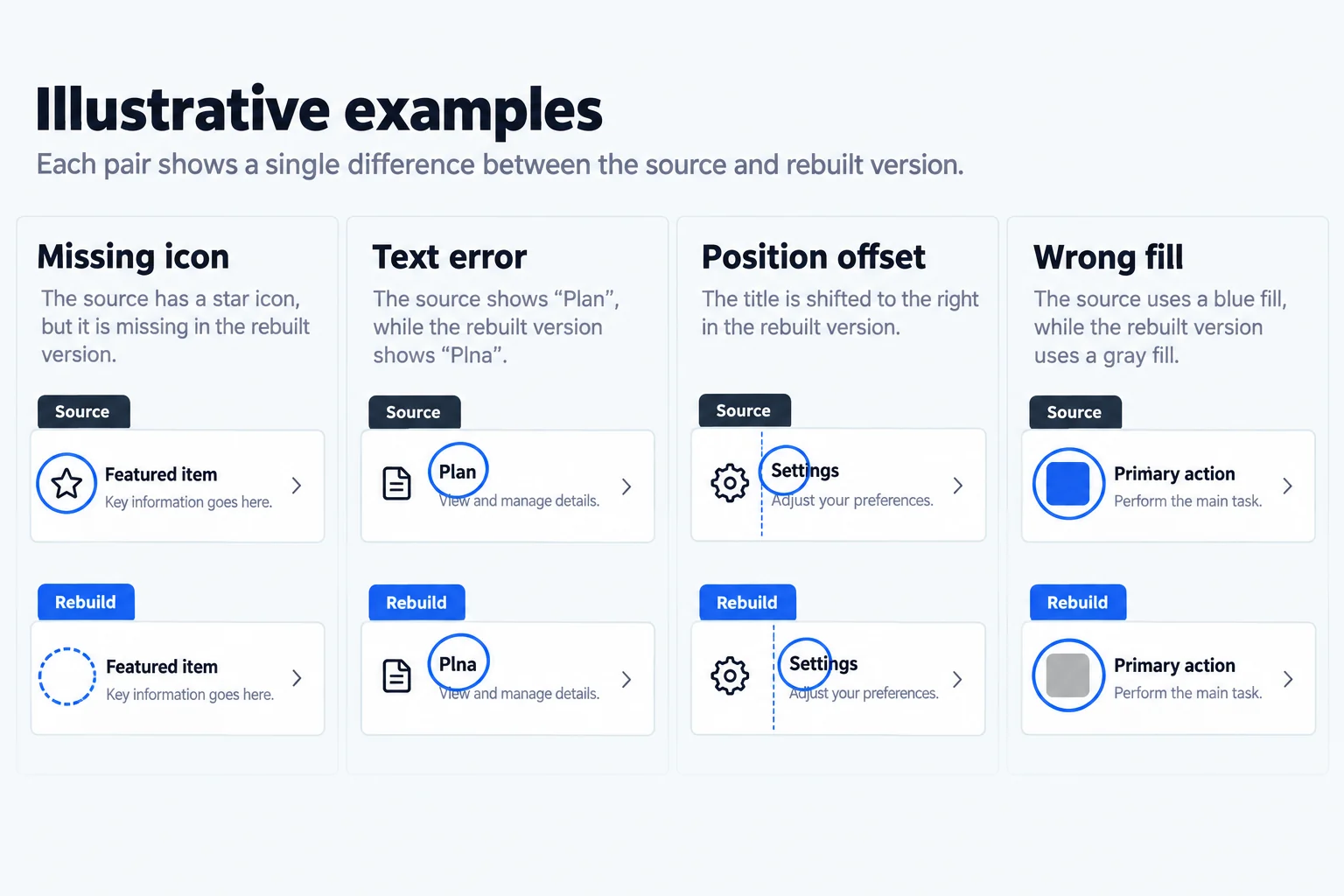
Photos and illustrations stay as they are
To keep photos and illustrations as they look in the original image, we ask the model not to redraw them with polygons. When photos, screenshots, illustrations, complex logos and similar content that the icon library cannot draw either are missing, or are drawn as a set of polygons, lines and ellipses, they are reported as "Shape approximation" or "Missing element", but no addition is proposed. The user replaces them with an image cut out of the original image by using "Convert to image".
Images already placed
Images on the slide are stored separately from ordinary elements. To keep the model from reporting the area of a placed image as missing when it compares against the original image, we write the list of images (name and position) into the instructions, in three cases:
- Cutouts: these areas are already images cut out of the original image and drawn above all elements; do not report them as missing or extra, and do not propose redrawing them;
- Web images inserted by the user: differing from the original image is intentional; do not report them as missing, extra or wrong;
- Web images saved earlier without a local copy: shown as gray dashed placeholder boxes; same rules as above.
What the report looks like
Each issue has a severity, a category, a description and, optionally, a related element.
- Severity: High, Medium, Low, Info.
- Completeness: high / medium / low, shown as "High completeness", "Medium completeness" or "Low completeness".
- Related element: when an issue points to an existing element, clicking the issue locates that element.
- Added elements: elements the model considers clearly missing and for which it can give exact pixel coordinates; they must be valid slide elements.
The report is parsed item by item, so one malformed issue does not invalidate the whole report:
- If the model adds explanatory text or code block markers before or after its reply, the report can still be read; if no report can be read at all, the message "The check model did not return a valid JSON report" appears;
- An unrecognized completeness rating is treated as "low", and an unrecognized severity is lowered to "Info";
- Issues with an invalid category or an empty description are discarded;
- Each report holds at most 40 issues and 24 added elements, and overly long descriptions are truncated.
How the report is applied to the slide
After the report is parsed, the steps run in order: add missing elements → auto-fix high-severity issues → save the report.
Adding missing elements: always "New · unconfirmed"
The position of centered and right-aligned text among the added elements is corrected first, then each element is handled in turn:
- It gets an ID that does not clash with existing elements and images;
- It is appended to the end of the slide, and the whole slide is validated again as a script;
- If validation passes, the element is kept; if not, it is skipped, and the report gets a note that one element the model proposed to add had invalid geometry and was skipped.
Added elements are always unconfirmed. The Element list gives them the "New · unconfirmed" badge, they flash on the canvas for 1.4 seconds, and the list scrolls to the first added element.
High-severity issues get one automatic fix
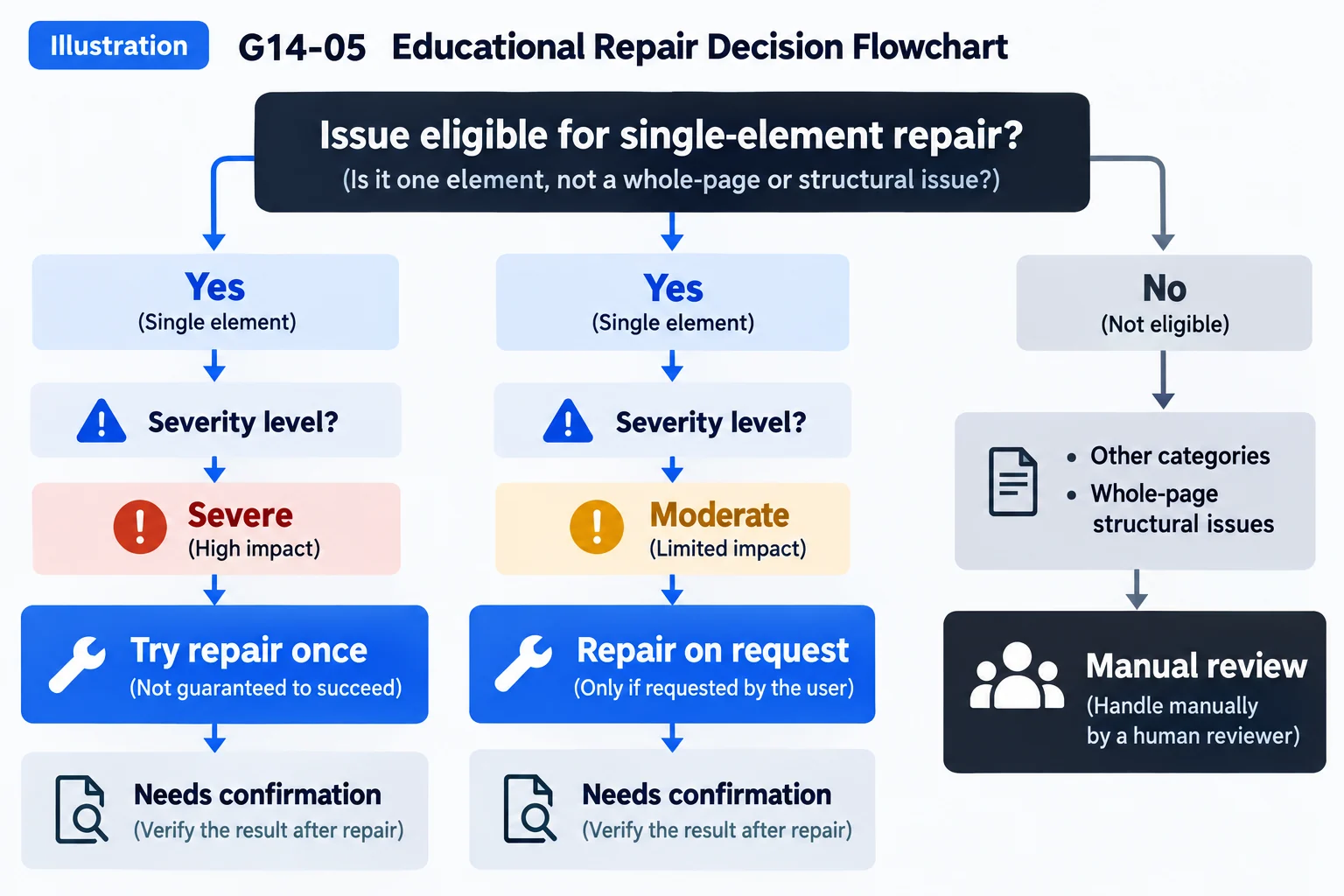
Auto-fix handles only issues that meet all of these conditions:
- The severity is "High";
- It is related to an element that still exists;
- The category is not extra, missing, stacking or completeness. These cannot be solved by changing one element: an extra element needs to be deleted, missing elements are already handled by adding them, and stacking and completeness concern the whole slide.
Each element is fixed at most once, and each check makes at most 6 attempts, to keep a chain of changes from adding time and cost. The issue description is used as the change request and handed to single-element editing (the model sees the original image and the Element list); the result must also pass script validation. A fixed element returns to unconfirmed, and the issue is marked "Auto-fixed"; when the fix does not succeed, a note "Automatic fix failed; handle it manually: …" is added.
The remaining issues are left to the user:
| Level | Handling |
|---|---|
| High (a category that single-element editing can fix, with a related element) | Fixed automatically once |
| High (a whole-slide category, or no related element) | Listed only |
| Medium (with a related element) | The report offers a "Fix" button; the user decides whether to change the element |
| Low / Info | Listed only |
Saving and status
When elements were added or auto-fixed, the job returns to the "Awaiting review" state; export still requires all elements to be confirmed. The report is saved with the job and can still be viewed after the service restarts.
When a report is out of date
When a report is saved, it records a signature of the slide content at that time: the canvas size, the background, and the type and parameters of every element, without the confirmation states. The signature is computed after adding and auto-fixing, so a freshly generated report is not out of date. Once any element is changed afterwards, the top of the report shows "The script has changed, so this report may be out of date. Run the check again.".
The signature leaves out the confirmation states because the next step after receiving a report is to confirm the elements one by one; if confirming also made the report out of date, the report would lose its value as a reference.
Requirements
- Only one operation can run on a job at a time.
- A decomposition result must exist.
- An original image is required: slides imported from a .pptx have no original image to compare against and cannot use the integrity check.
- After a redesign is applied, the slide is no longer compared with the original image, so the integrity check is unavailable; it becomes available again after the redesign is undone.
- At most 2 AI operations run at the same time.
- A single check takes at most 300 seconds; the check itself and up to 6 automatic fixes share this limit.
- When the model service returns an error, the interface shows the reason; keys in error messages are hidden.
How it differs from the visual recheck
Both passes are what make an image to slide result trustworthy. They share the checklist, the output format, report parsing, and the rules for adding elements and auto-fixing, so their reports look the same in the interface. The difference is the input: the integrity check gives only the original image and the numeric parameters of the elements, so the model has to judge from the parameters what the elements look like when drawn; the visual recheck additionally attaches a rendering captured in the browser and lets the model compare the two images, specifically to find problems that appear only after rendering. The integrity check runs automatically after decomposition; the visual recheck is started by hand. See Topic: Visual verification with a large model.
Report parsing, adding elements, auto-fix and the out-of-date check are covered by automated tests.
Current limits
- It does not look at the rendered result. Problems such as font fallback, actual colors and overlaps are found by the visual recheck.
- Added elements can only be native elements. Photos, illustrations and complex logos are only reported; use "Convert to image" to replace them with a cutout from the original image.
- Extra elements are not deleted automatically; delete them by hand.
- The check uses the same model as decomposition, and the completeness rating is the model's assessment. Model output may be inaccurate, so added elements and changes all need to be confirmed by hand.