A slide can pass the element list and still look wrong once it is drawn, which is why the visual recheck exists in image to PPT. It captures the current preview canvas in the browser as a PNG and sends it, together with the original image, to the multimodal model, which compares the two images to find differences. The integrity check shows the model only the numeric parameters of the elements, so the model has to judge from the parameters what the slide looks like when drawn. The visual recheck lets the model look at the rendered result directly and specifically looks for problems that appear only once the slide is drawn: actual colors, overlaps, font fallback, real position offsets, and content that is in the original image but missing from the screenshot. The report format and the rules for adding elements and auto-fixing are the same as for the integrity check, and added elements are also "New · unconfirmed". The visual recheck does not run automatically; click "Start visual recheck" on the "Visual recheck" tab.
How it works
The panel shows the process as a 4-step progress bar: "Taking screenshot" → "Uploading for comparison" → "Model rechecking" → "Recheck complete". The description reads "Renders the current preview to a screenshot, compares it with the original image element by element, then runs the checklist again.". While the recheck runs, the button shows "Rechecking…"; when it finishes, "Recheck report" is shown, and "Recheck again" runs it once more.
- When the slide has no elements yet, the message "No script to recheck" appears; when the canvas has not finished rendering, "The preview is not ready yet" appears;
- The browser captures the current preview. The screenshot is also shown under "Screenshot for recheck" in the left panel, so you can see what the model sees;
- The screenshot and the original image are given to the model together for comparison;
- When it finishes, the message "Visual recheck complete. Added N missing elements; review them." or "Visual recheck complete." appears; added elements flash on the canvas and are marked in the list;
- If any step fails, the reason is shown in the panel.
Uploading a new image clears the previous screenshot and progress, because the old screenshot cannot be compared with the new original image.
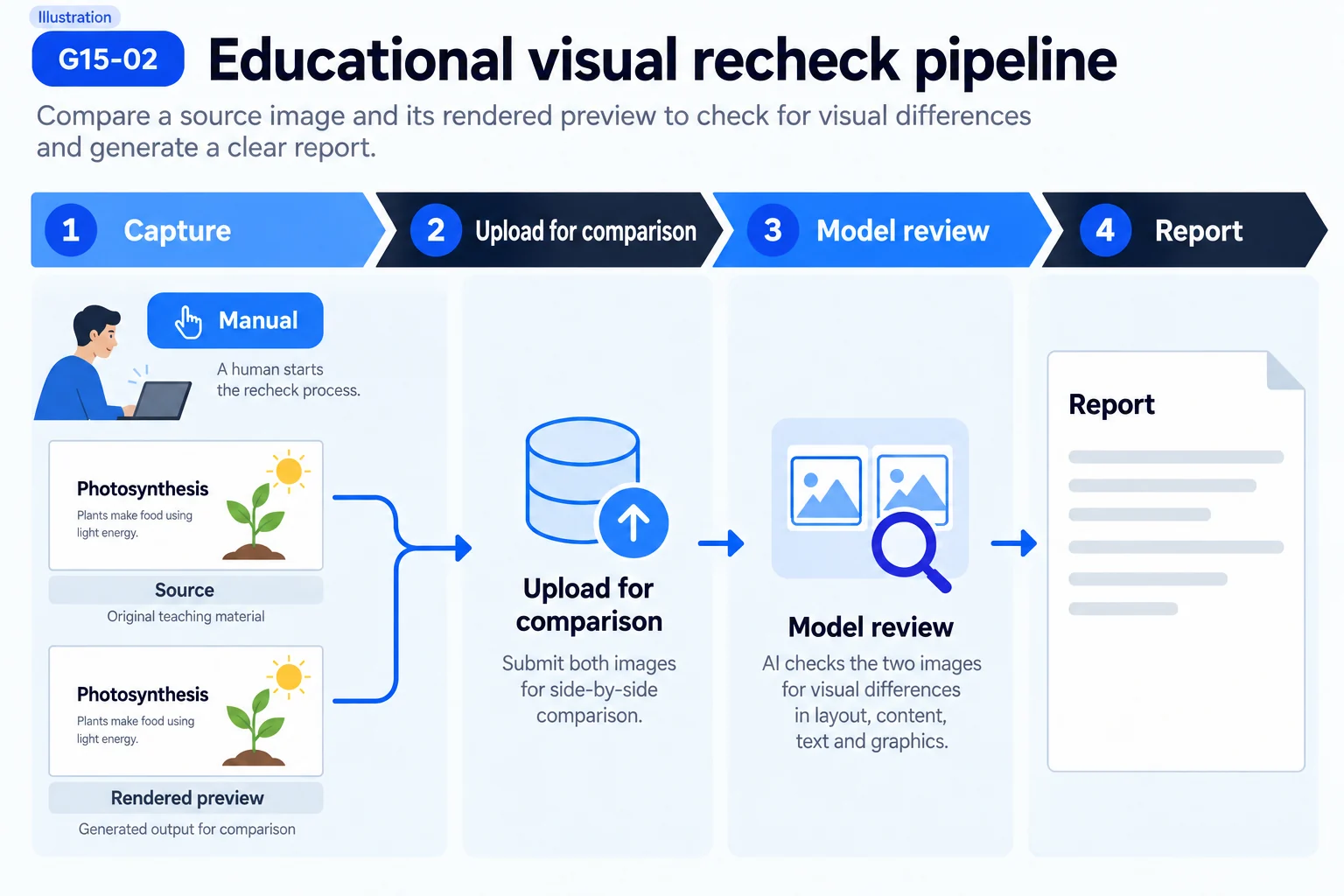
How the screenshot is made
The screenshot is generated in the browser:
- It is output at the pixel size of the original image. The canvas on the page is displayed scaled; only a screenshot at the original size has coordinates that correspond one to one with the original image;
- Selection frames are removed, so the screenshot contains only the slide content;
- Cutouts and web images already downloaded locally are embedded in the screenshot first, so that the image content is visible in it;
- Images without a local copy (web images saved earlier, or images that failed to load) are replaced with gray dashed boxes, so that the area is not blank and reported as missing by the model;
- A white background is laid underneath, and the result is output as PNG.
The same screenshot is also sent as an optional "current rendering" to imageToEditablePPT-Agent and beautyPPT-Agent (diagnosis, design option generation, step-by-step edits). When the screenshot fails, it is not attached, and these operations are not affected.
Requirements
The visual recheck follows the same rules as the integrity check:
- Only one operation can run on a job at a time, and at most 2 AI operations run at the same time;
- A decomposition result must exist;
- An original image is required: slides imported from a .pptx have no original image to compare against and cannot use the visual recheck;
- After a redesign is applied, the slide is no longer compared with the original image, so the visual recheck is unavailable; it becomes available again after the redesign is undone;
- The screenshot size limit is the same as for uploaded original images: 20 MB;
- A single recheck takes at most 300 seconds; the recheck and up to 6 automatic fixes that follow share this limit;
- When no model is configured, the message "Image analysis is not configured, so the visual recheck cannot run." appears; when the model service returns an error, the interface shows the reason, and keys in error messages are hidden.
The model receives two images in order: first the original image, then the screenshot. It uses the same model as decomposition.
What the model is asked to do
For image to slide, the recheck instructions are largely the same as for the integrity check, with a few extra requirements at the start:
- State clearly what the two images are: the first is the original image, the second is a rendered screenshot of the current slide;
- Compare the screenshot with the original image area by area and report every visible difference, focusing on problems that appear only after rendering: actual colors, overlaps and stacking, font fallback, real position offsets, and content that is in the original image but missing from the screenshot;
- When centered or right-aligned text shifts to one side as a whole after rendering (for example, a label half outside its bar), report it as a position problem with the corrected position, not as truncated text. Such problems are visible only after rendering and can be mistaken for text content problems.
Everything else is the same as for the integrity check: the list of placed images (with a note that gray dashed boxes in the screenshot are intentional placeholders and should not be reported as missing or extra), no polygon redrawing of photos and illustrations, the same 10-category checklist, the current Element list and the same output format. Both checks assess the same dimensions.
The model sees both the screenshot and the Element list, so it can map deviations in the screenshot to specific elements; issues in the report can be clicked to locate the element and can be auto-fixed.
How the results are handled
The same rules as for the integrity check apply (see Topic: What the integrity check is for):
- Each report holds at most 40 issues and 24 added elements; malformed items are discarded one by one;
- Added elements pass script validation one by one; invalid ones are skipped with a note, and valid ones are marked "New · unconfirmed";
- High-severity issues with a related element (except extra, missing, stacking and completeness) are auto-fixed once, at most 6 times; Medium issues offer a "Fix" button; Low and Info issues are listed only;
- The recheck report and the integrity check report are saved separately; after elements are changed, the top of the report shows "The script has changed, so this report may be out of date".
The "New · unconfirmed" badge in the Element list reflects elements added by both reports. Export still requires all elements to be confirmed.
Report parsing and the rules for adding elements and auto-fixing are covered by automated tests.
Where else the model's vision is used
| Stage | Images the model sees | Purpose |
|---|---|---|
| Decomposition | Original image | Break the slide into editable elements and mark regions to cut out |
| Integrity check | Original image | Check the Element list for gaps and errors; runs automatically after decomposition |
| Visual recheck | Original image + rendered screenshot | Compare against the rendered result; started by hand |
| Single-element editing, auto-fix | Original image | Change one element |
| imageToEditablePPT-Agent | Original image + optional rendered screenshot | Find what to fix from the differences between the two images |
| beautyPPT-Agent | Only the optional rendered screenshot, not the original image | Understand the current look when redesigning |
For cutouts, the model gives only region coordinates, and the server cuts the pixels directly out of the original image. Neither changes by the Agent nor design options generated by beautyPPT-Agent trigger another visual recheck automatically; start one by hand when needed.
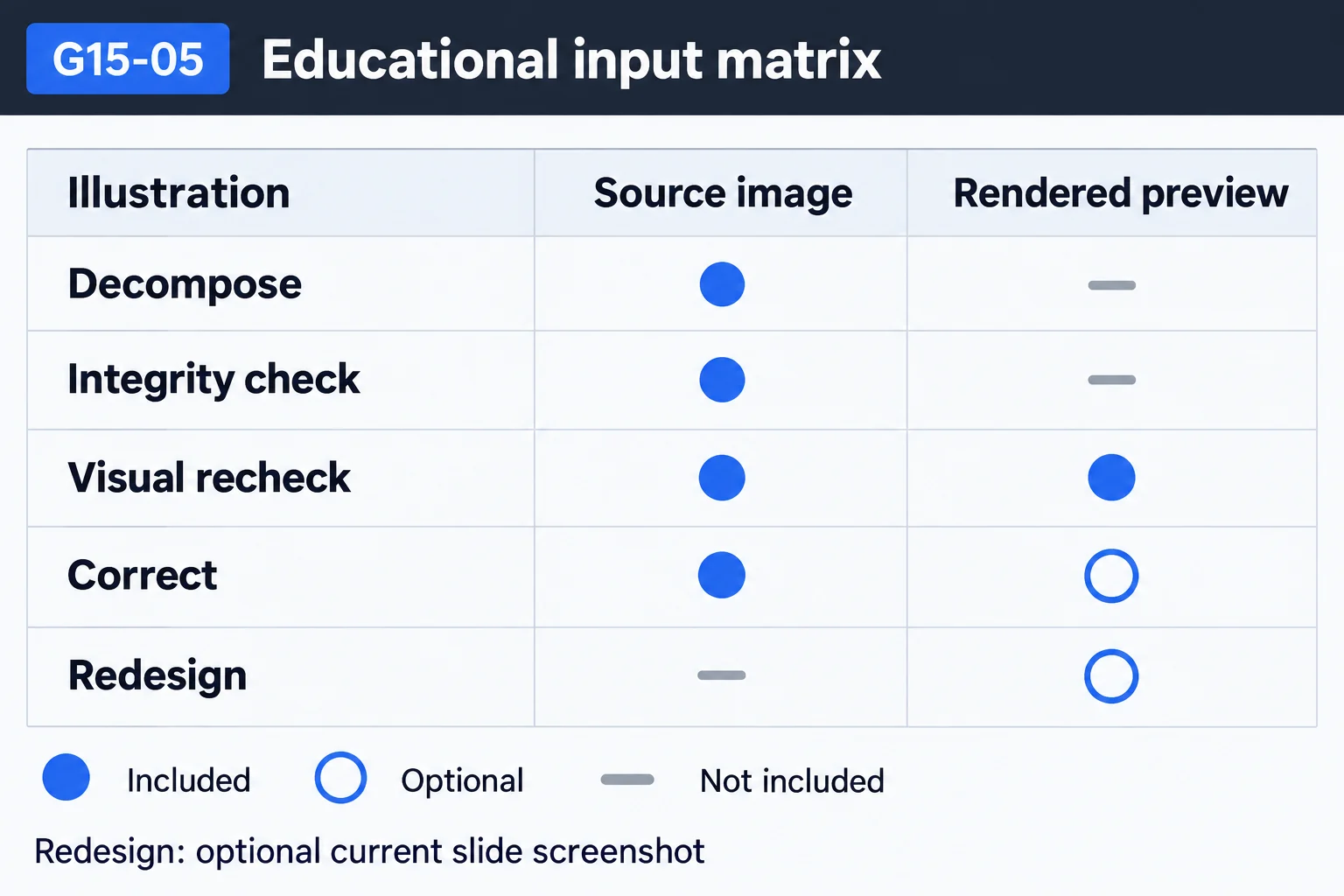
Current limits
- The screenshot comes from the preview in the browser, not from PowerPoint opening the exported file. Shadows, blur and glow are approximated with SVG filters in the preview, and fonts depend on what the browser has available at the time, so the result may not match PowerPoint exactly. That gap is why an image to slide result should still be opened in PowerPoint once before delivery.
- The screenshot has to be generated in the browser, so the visual recheck currently cannot run automatically after decomposition; start it by hand.
- Web images saved earlier without a local copy appear only as gray placeholder boxes in the screenshot, and the model cannot see their content.
- During auto-fix, single-element editing refers to the original image, not to this screenshot.