
Convert diagram to editable PPT: nodes and connectors become objects again

Architecture figures in papers, competitor pages and old decks usually survive only as an image. When you convert diagram to editable PPT, each box, connector and label is measured back into objects, so adding a node, rerouting an arrow or translating text becomes a direct edit.

Concept illustration of image to slide conversion, from a flat screenshot to individually editable text and shapes

Live tool · free to try

Drop an image in and start converting

JPG, PNG, screenshots and .pptx — text, shapes and tables stay individually editable afterwards.

Each successful AI action costs 10 credits. Conversion includes its automatic completeness check. Manual editing and export are free. Preview streams live; credits are charged on completion.

Connecting to the local service…

Source image

Click or drag an image or .pptx here to upload
Status: Waiting for upload · revision —
Multimodal model settings

Actions

PPT preview (live)

Waiting for analysis results

Cmd/Ctrl-click to select multiple, Shift-click to select a range.

Waiting for analysis results

Properties

Select an element

Click the canvas or object list to edit text, position and appearance.

AI Assistant

Select elements to edit, or ask to "Optimize everything".

Convert diagram to editable PPT and you preserve topology, not pixels

What matters in an architecture figure is structure: what connects to what, what sits inside what, which way data flows. A bitmap only has pixels, so changing one node means redrawing the whole figure.

Once decomposed, node count, connectors and labels are independent, and adding or removing one does not disturb the rest — that is what a diagram to editable PPT pass has to preserve. The object-level rules shared with every input are laid out in image to editable PowerPoint.

What nodes, connectors and labels turn into

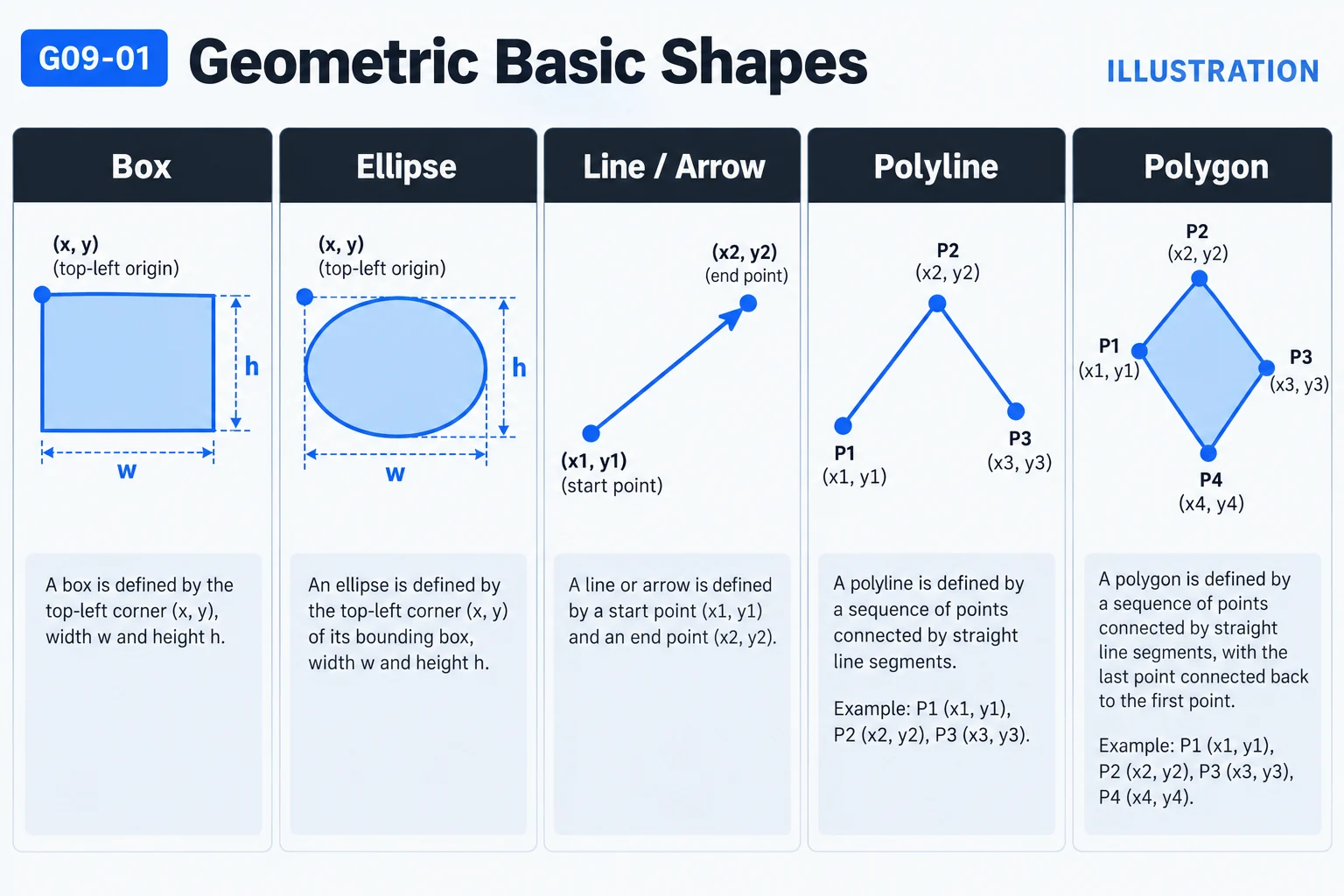
When you convert diagram to editable PPT, rectangles and rounded rectangles become autoshapes with text, and so do circles and decision diamonds; connectors become line or arrow shapes; grouping dashed frames become unfilled shapes; labels are separate text boxes; icons are vector shapes. One caveat: connectors arrive as independent lines with no glue points, so after moving a node the line has to be reattached by hand.

The five shape types and the coordinates that describe them
The native shapes diagram elements become

Key points

Why connectors drift after conversion

PowerPoint connector lines bind to shape connection points, while the output of a convert diagram to editable PPT run is made of ordinary lines — different behaviour. Work in this order: move and resize nodes first, drag the lines back to the endpoints, then align.

When a whole block has to move, select and group it first so the lines travel with it.

Flowcharts, org charts and system diagrams behave differently

The three behave differently after you convert diagram to editable PPT: flowcharts carry the most arrows, so every direction needs checking; org charts depend on level alignment, so equalise the vertical position of each tier first; system diagrams usually have nested containers and cross-layer links, and containers become large unfilled shapes sitting underneath — reorder them in the Selection Pane.

Where label recognition stops

Three label types cause most errors: small type gets merged or misread, vertical text can split into single characters, and rotated labels usually lose their angle. Before you convert diagram to editable PPT, use the original-size image rather than a screenshot that a chat app has recompressed.

Small infographic labels fail the same way, and convert infographic to editable PPT has the matching resolution advice.

When redrawing beats converting

A figure with three boxes and two arrows takes ten minutes with autoshapes and connectors, so converting it is not worth the round trip. It starts to pay to convert diagram to editable PPT once there are more than about fifteen nodes, deep nesting, or exact spacing from the source that must survive.

The hand-off checks for a converted diagram

Five checks settle a convert diagram to editable PPT export: the node count matches the source; every connector terminates on the right node; no arrow points backwards; no label lost characters; boxes on the same tier share size and spacing. Once those hold, the page is ready for the deck.

Pick the page that matches what you have

A JPG, a PNG, a screenshot or an AI-generated picture — one page per input, each with the converter at the top.

Image to slide overview

Subscribe to image to slide, no install

Image to slide runs entirely in the browser, and the exported file depends on no plugin.

See image to slide pricing
  • Native image to slide exportEvery image to slide export keeps text, tables and shapes as real objects, not one flat picture.
  • Shared image to slide creditsEach image to slide conversion and its completeness check cost credits per run; Pro chat edits are charged the same way.
  • Cancel anytimeCancel from the account page; image to slide exports you already made keep working.

Image to slide questions before uploading

Do connectors follow their nodes afterwards?

No. The output is ordinary lines with no bound connection points. After moving a node, drag the line back to its endpoint or draw a fresh connector in PowerPoint.

Are circles and decision diamonds recognised?

Yes. After you convert diagram to editable PPT, they become the matching shape with the text as a separate text box. Complex icons and heavily shadowed boxes can degrade into picture objects.

Can an architecture figure from a paper be converted?

Yes — you can convert diagram to editable PPT from a paper as long as the resolution holds. Export figures from a PDF as PNG at twice the size before uploading; a direct screenshot often does not carry enough pixels.

Can I add nodes afterwards?

Yes. Duplicate a shape from the same tier, change its text and position. The new node is not bound to anything from the source, and no connector is created automatically.

Does a hand-drawn whiteboard photo convert?

Only partly. Hand-drawn lines are irregular and boxes do not close, so text and shapes get mixed up. A whiteboard sketch is better redrawn first.

Updated November 2026